Free & open source · Windows 11 & 10
Clipboard Manager for Windows – free Win+V alternative
Get back anything you copied – even after a reboot. Clipboard Manager keeps your clipboard history on Windows 11 and Windows 10, searchable as you type and with pinned snippets. One portable EXE, no account, no cloud.
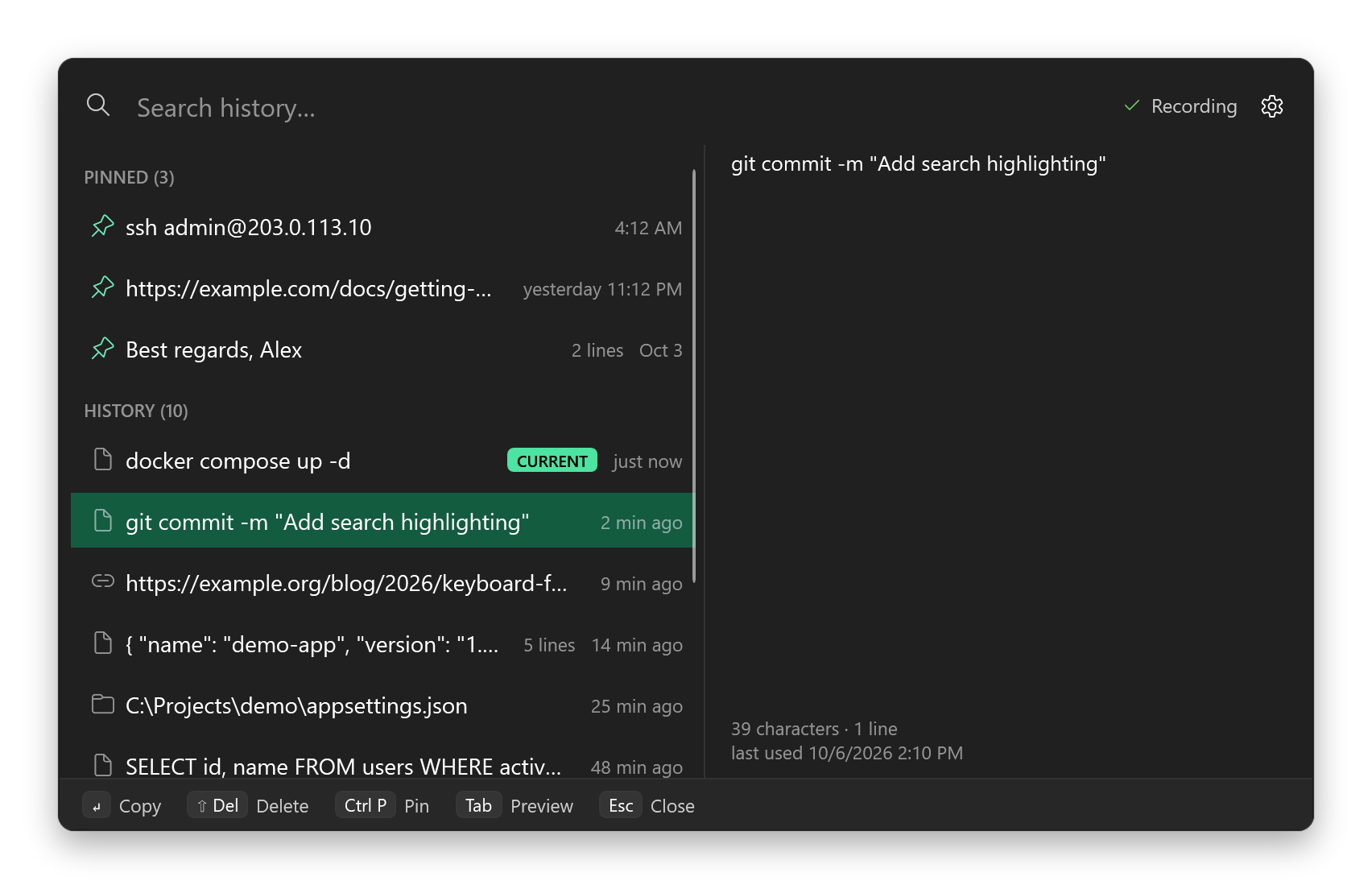
Ctrl + Shift + V , then type a few letters , then press Enter
On your phone? Clipboard Manager runs on Windows PCs – star or bookmark it and open this page on your computer.
- No account
- No cloud
- No telemetry
- No admin rights
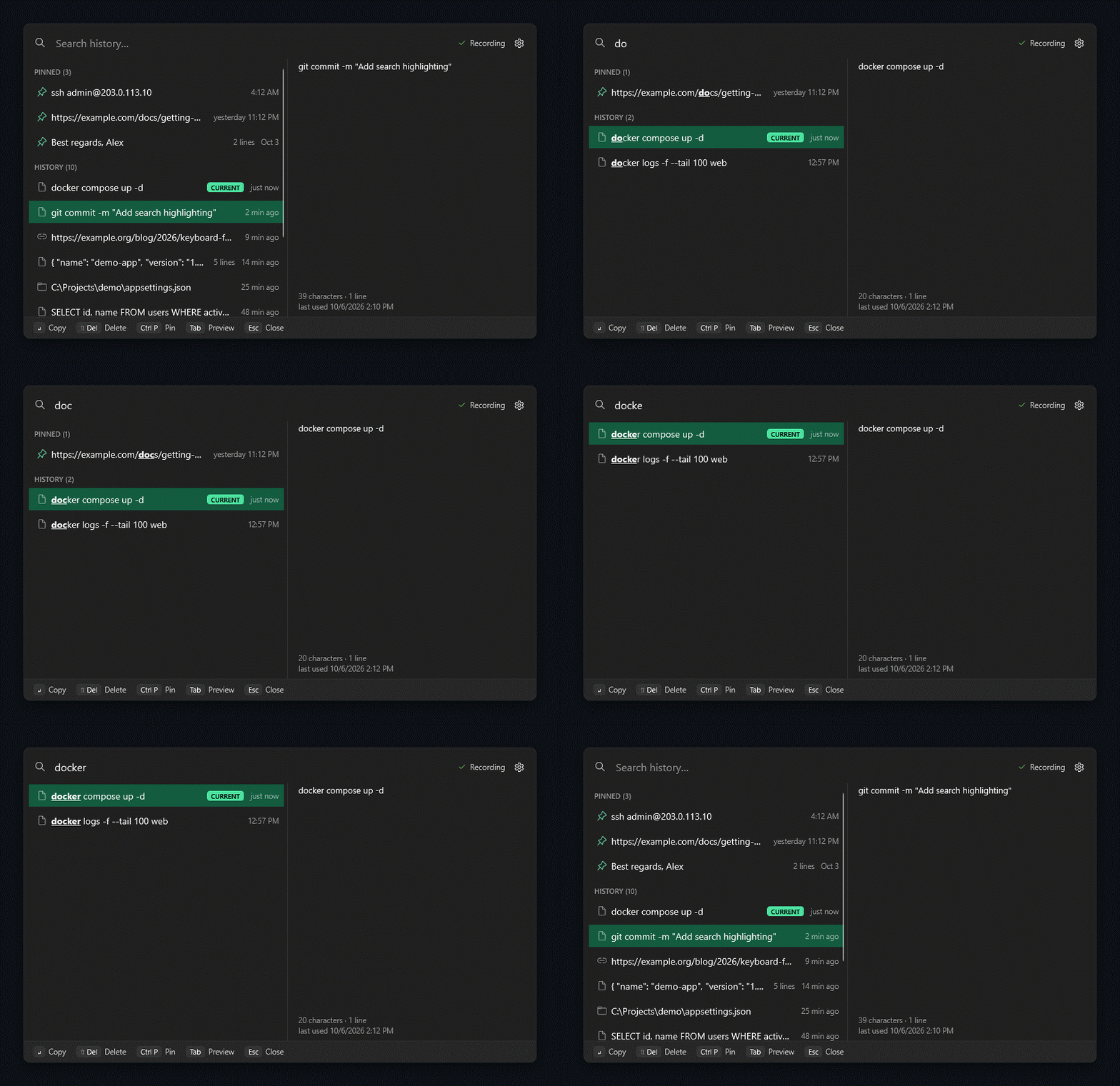
Your clipboard history in three keys
It runs quietly in the notification area and is ready the moment you need it.
-
Copy as usual
Press Ctrl+C in any app. Clipboard Manager remembers the text – even across restarts.
-
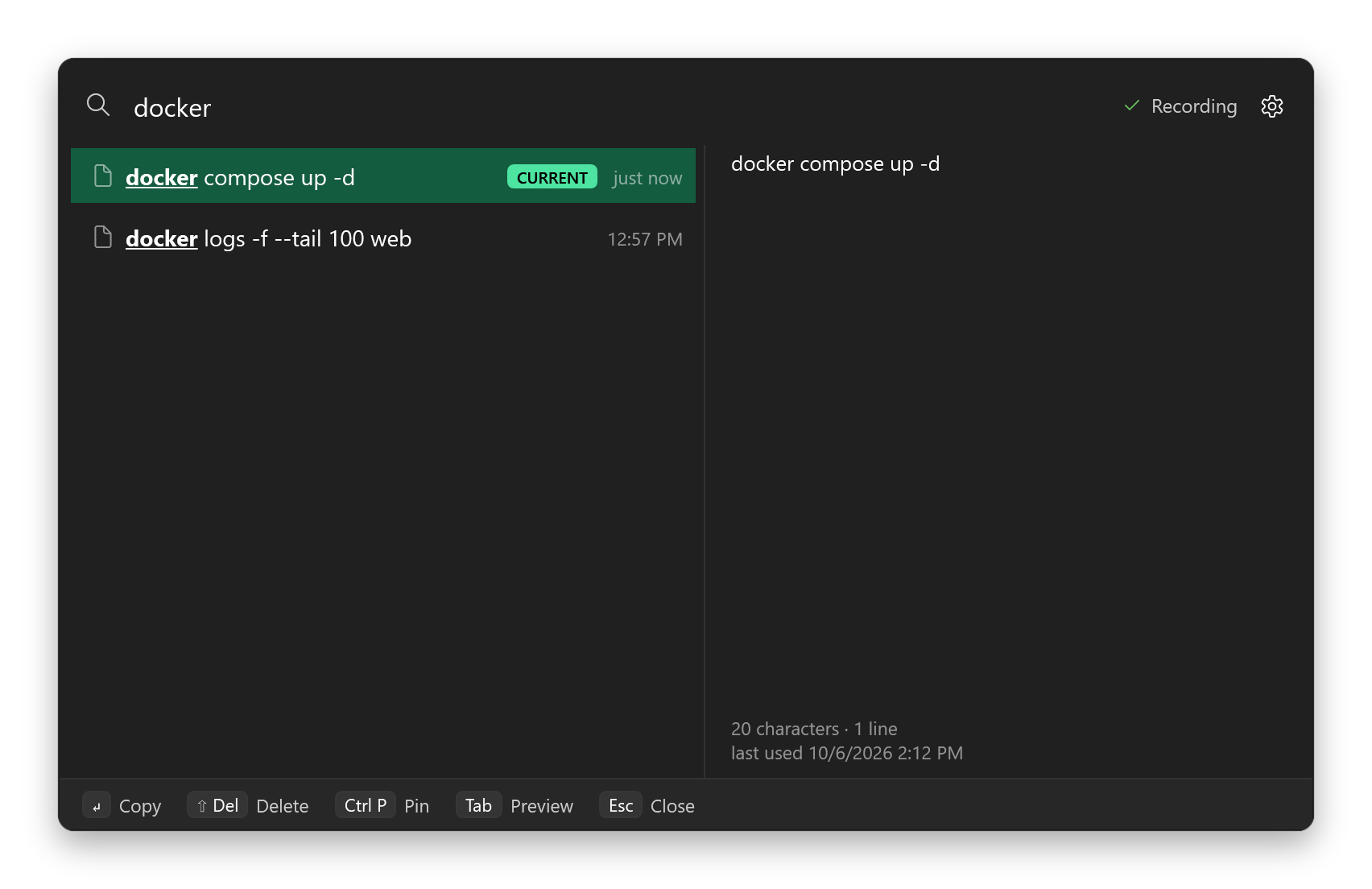
Press Ctrl+Shift+V and type
A small window opens in about 8 ms. A few letters filter your whole history instantly.
-
Press Enter, then paste
The entry is back on your clipboard and focus is back in the app you came from, so Ctrl+V just works.
Tip: the window pre-selects the entry before your current one, so Ctrl+Shift+V, Enter, Ctrl+V pastes your previous copy.
The essentials, done right – nothing to configure
Set it up once, then forget about it until the moment it saves you.
-
Instant
The window is pre-built in the background and opens in about 8 ms. Searching 5,000 entries takes well under a millisecond.
-
Keyboard-first
Type to filter, arrows to move, Enter to copy, Esc to close. Pin with Ctrl+P. No mouse needed.
-
Survives a reboot
100 entries by default, up to 5,000 – and they are still there after a restart. Win+V keeps 25 and clears the unpinned ones.
-
Pins, no duplicates
Pinned snippets never fall out of the history. Copy something again and it moves to the top instead of adding a second row.
-
Private by design
Local only. Respects the “do not record” markers of password managers and hides itself from screen sharing.
-
Pause anytime
Stop recording for 5, 30 or 60 minutes or until you resume – or ignore just the next copy.
-
Looks like Windows 11
Fluent design in light, dark or system theme, following your accent color. In English and German.
-
One EXE, light on resources
No installer, no admin rights, no .NET to install. Idles at about 35 MB and 0.01 % CPU, and updates itself in one click.
Why not just Win+V?
The clipboard history built into Windows 11 is a good start. Clipboard Manager picks up where it stops.
| Feature | Windows clipboard history (Win+V) | Clipboard Manager |
|---|---|---|
| Entries | 25 | 100 by default, up to 5,000 |
| After a restart | cleared (except pinned) | kept |
| Search | none | instant, as you type |
| Exclude apps | no | yes |
| Password-manager markers | respected | respected |
| Sync to the cloud | optional | never – local only |
| Open source | no | yes, GPL-3.0 |
| Images, HTML | yes | not yet (text only) |
And Ditto or CopyQ?
Both are excellent and do more – images, sync, scripting, lots of options. Clipboard Manager is deliberately smaller: zero configuration, a window that is ready the moment you press the shortcut, focus that returns to where you were, a modern Windows 11 look and a strict local-only design.
Your clipboard never leaves your PC
A clipboard manager sees everything you copy, so privacy is not a feature here – it is the design.
What the app guarantees – most of it tested on every build
- No network access unless you ask for it. No telemetry, no automatic update checks, no account. Only a click on Check for updates contacts GitHub, and nothing about you or your clipboard is sent.
- Password managers are respected. Content marked “do not record” is never read – KeePass, KeePassXC, Bitwarden, Proton Pass and Chrome/Edge password fields set these markers.
- Deleted means deleted. Deleted entries are overwritten in the database file, not just hidden.
- Logs never contain clipboard content – not even in error messages – and crash reports contain no memory contents.
- Hidden from screen sharing and recordings – on by default.
- You stay in control. Pause, ignore the next copy, exclude apps, keep the history in memory only, skip detected credentials, clear everything.
Honest limits
The history database is stored unencrypted in your user profile, protected by Windows file permissions like any other app data, so software running under your account can read it. Remnants on SSDs, in shadow copies or in the page file can't be ruled out; BitLocker protects the disk.
Passwords cannot be recognized by their shape, so use pause or ignore next copy for those if your password manager does not mark them.
Company crash-dump policies or a dump you create yourself can still contain history – never attach dumps to public issues.
Up and running in 30 seconds
There is nothing to install. Download, double-click, done.
- Download ClipboardManager.exe (or ClipboardManager-arm64.exe for ARM PCs, or the smaller ClipboardManager-x64.zip – extract it first).
- Put it in a permanent folder, for example
%LOCALAPPDATA%\Programs\ClipboardManager\. - Double-click it. A short welcome window confirms it is running and starts with Windows.
- Copy something, then press Ctrl+Shift+V.
Seeing a warning?
Early releases are not code-signed yet, so Windows and your browser may be cautious about a new download:
- If your browser says the file isn't commonly downloaded, choose Keep (in Edge it is in the … menu of the download).
- If SmartScreen says “Windows protected your PC”, click More info, then Run anyway.
- On PCs with Smart App Control turned on, unsigned apps can't start at all. Code signing is planned.
Want to be sure? Every release publishes SHA-256 hashes and a GitHub build attestation: gh attestation verify ClipboardManager.exe --repo Secoolioo/clipboard-manager
Frequently asked questions
Windows SmartScreen says “Windows protected your PC”. Is the download safe?
Early releases are not code-signed yet, so SmartScreen may warn about a new download. Click More info, then Run anyway. Every release is built in public on GitHub Actions and publishes SHA-256 hashes and a build attestation that you can check with gh attestation verify ClipboardManager.exe --repo Secoolioo/clipboard-manager. On PCs with Smart App Control turned on, unsigned apps cannot start at all; code signing is planned.
Is Clipboard Manager really free?
Yes. It is free and open-source software under the GNU GPL v3.0 or later: no ads, no account, no trial and no paid edition. If it saves you time, you can support the project with an optional tip.
Does it upload my clipboard or send any data?
No. Your history stays in a database on your PC. The app makes no network connections at all unless you click Check for updates, and then it contacts only GitHub and sends nothing about you or your clipboard. There is no telemetry, and an automated test fails the build if networking code appears anywhere outside the updater.
How do I update to a new version?
Open Settings → About → Check for updates (or Check for updates… in the tray menu). If a newer release exists, Install update downloads it, accepts it only if its size and SHA-256 match the release, replaces the EXE in place and restarts the app. Settings, history and pins are kept. You can also exit the app and replace the EXE with a fresh download.
How do I uninstall Clipboard Manager?
Open Settings → About → Remove everything. It deletes your history, settings, logs, the autostart entry and the Start menu shortcut, then exits. Afterwards delete ClipboardManager.exe. Only the runtime files the EXE extracted to %TEMP%\.net\ClipboardManager remain, and you can delete that folder too.
Does it support images, files or formatted text?
Not yet: Clipboard Manager keeps text only for now. Copying images and files still works exactly as before; they are just not added to the history. If you need them, tell us in GitHub Discussions.
Can I keep using Win+V?
Yes. Clipboard Manager does not change or disable the Windows clipboard history, so both work side by side. It opens with Ctrl+Shift+V by default, because Windows keeps Win+V for itself. You can pick another shortcut in Settings, and if Ctrl+Shift+V is already taken when the app starts, it falls back to Win+Alt+V and tells you.
Ctrl+Shift+V already does something in my apps?
In some apps (Word, Teams, browsers) it means paste as plain text, and in Windows Terminal it pastes. Clipboard Manager takes over the shortcut everywhere while it runs, so if you rely on it, pick another one in Settings.
Does it run on Windows 10 and on ARM PCs?
Windows 11 is fully supported and Windows 10 22H2 works on a best-effort basis. There are native builds for x64 and ARM64. No .NET installation, no installer and no administrator rights are needed.
Why is the EXE so large?
The x64 EXE is about 143 MB and the ARM64 EXE about 159 MB because each contains the complete .NET runtime. In exchange it needs no installation and uses only about 35 MB of memory and practically no CPU while it waits in the background. The x64 ZIP is a smaller download of about 61 MB; extract it first.

Stop losing what you copied
Free, open source and private. Give it a try – it takes less time than reading this page.
Clipboard Manager is free and stays free. If it saves you time and you'd like to support further development, you can send a little SOL – entirely optional, a star or a bug report helps just as much.